


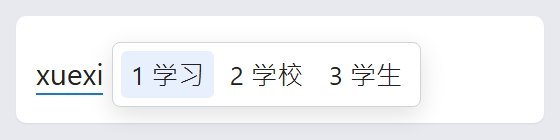
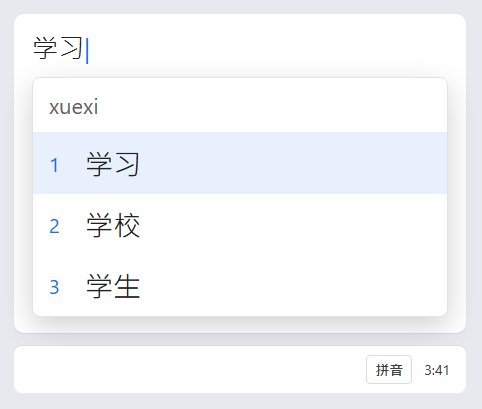
You type the sound in ordinary letters. The keyboard offers characters. Tap the one you want. For Simplified Chinese, that input is Pinyin. Type xuexi, tap 学习. You do not type the tone marks.
QWERTY does not move. The input method watches the letters. Wubi, the stroke-code system, is for people who already drilled it. Skip it.
Simplified and Traditional are two scripts. 语 is Simplified. 語 is Traditional. Same word, different strokes. If you wanted the full-form characters, use the Traditional Chinese typing guide.
iPhone
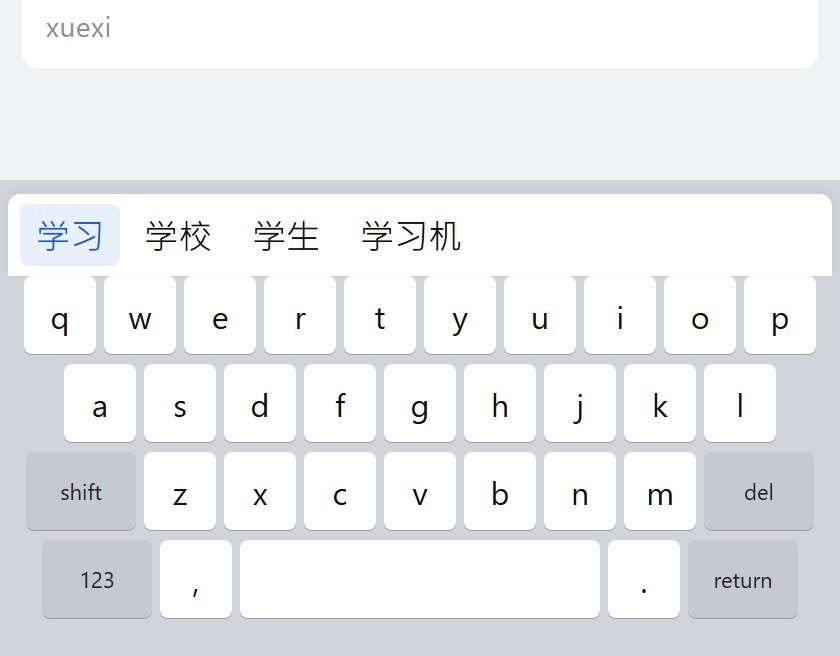
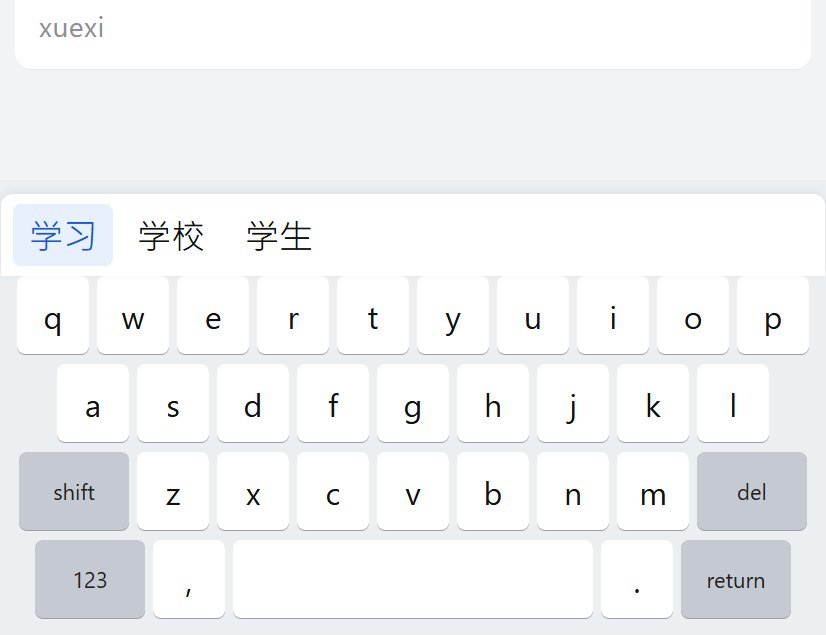
The bar above the keys is the candidate list. The highlighted one is the tap.
- Open Settings, then General, then Keyboard, then Keyboards.
- Tap Add New Keyboard, then Chinese, Simplified, then Pinyin.
- Handwriting is in the same menu if you want a backup. Reach it with the globe key.
- Tap the globe until the candidate bar appears. English letters and no bar means you are still on the English keyboard.
Type xuexi and tap 学习. Swipe the bar for more.
Preferred Language Order, under Settings, General, Language & Region, is the phone's menu language. Leave it. You do not need the whole iPhone in Chinese.
Android
- Open a text field.
- Tap Settings on the keyboard.
- Tap Languages, then Add keyboard.
- Choose Chinese (Simplified), then Pinyin.
Samsung Keyboard: add Simplified Chinese in that keyboard's languages. Hold the space bar to switch on Gboard.
Type xuexi. Tap 学习, or press Space, which often takes the first candidate. The phone's system language stays as it was.
Windows
- Open Settings, then Time & language, then Language & region.
- Click Add a language, then Chinese (Simplified, China).
- If Windows offers to change the display language, skip it.
- Open Language options and confirm Microsoft Pinyin is listed under keyboards.
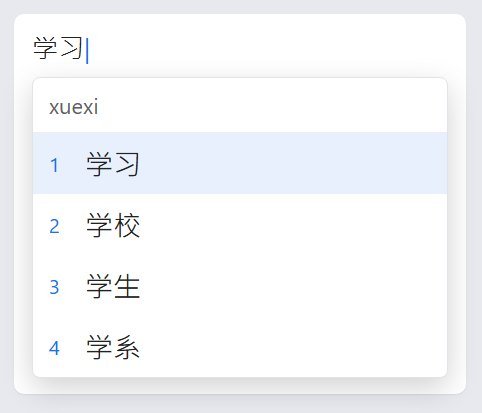
Windows key + Space switches. If you get plain English letters, click the taskbar input indicator, or press Shift. Inside Microsoft Pinyin, Shift often toggles English and Chinese.
Space or a number picks a candidate. Enter confirms. The physical keys stay where they were.
Mac
- Apple menu, System Settings, Keyboard.
- Under Text Input, click Edit, then +.
- Choose Chinese, Simplified, then Pinyin – Simplified, then Add.
Control-Space switches, or the Input menu in the menu bar. Caps Lock can hop back to English if that option is on. Type xuexi, then Space or Return.
Keyboard Viewer, in the Input menu, shows the current keys. For Pinyin you should not need it.
Chromebook
- Click the time, then Settings.
- Under Device, open Keyboard, then Change input settings.
- Add Chinese (Simplified) Pinyin, or the closest Simplified Pinyin name in the list.
- Turn on Show input options in the shelf.
Ctrl+Shift+Space cycles forward. Ctrl+Space goes back. The device language does not change.
FAQ
Why are the characters traditional?
The input is set to Traditional, or you picked that keyboard. 語 is Traditional. 语 is Simplified. They sit next to each other in the same add-keyboard list. Go back and choose Simplified.
Do I type the tone marks?
No. Type xuexi, not xuéxí. The list sorts the matches. Tone marks belong in a textbook, not in the keyboard.
Can I write one character by hand?
On a phone, yes. Add handwriting from the same keyboard list, then switch to it with the globe key or the space-bar menu. Use it for the character you recognize and cannot pronounce. Pinyin is faster for everything else.
Lessons: Simplified Chinese lessons. Cards: Yak Cards.